Digital signage in any web browser.
The POMP web player is the full signage player running in a browser tab. Open player.pompsignage.com on a Windows PC, a Mac, a Chromebook, a Raspberry Pi or a smart TV's browser, pair it with the code it shows, and it plays your playlist full screen.
Why use a browser for digital signage
There's nothing to install, so it's the quickest way to try POMP, and a good fit for kiosk PCs, computers already connected to a screen and hardware where the native apps aren't available.
- Nothing to install: open a web address and pair
- Works on hardware you already own, from office PCs to a Raspberry Pi
- Provision kiosks with a URL that carries your provision key, playlist and device name
- Temporary mode for kiosks that wipe their storage when they restart
- Click buttons on a design with a mouse, or tap them on a touch screen
- Remote screenshots, synced playback and video walls, the same as the apps
- Embed the player on an intranet page or your own website
What you need
- A current version of Chrome, Edge, Safari or Firefox, or another modern browser
- A steady internet connection. The web player relies on the browser's own cache, so for screens that must ride out outages use an Apple TV or Android TV device.
- Power settings that keep the display on
- A free POMP account. The Free plan covers one screen.
How to set up digital signage on a web browser
- 1Open the web playerIn Chrome, Edge, Safari or Firefox, go to player.pompsignage.com and make the window full screen (F11 on Windows, Control-Command-F on a Mac).
- 2Pair it with the code on screenThe player shows a short pairing code and a QR code. In the POMP dashboard, open Devices, choose Pair device and type the code, or scan the QR code with your phone.
- 3Name the screen and pick a playlistGive the screen a name, choose a playlist and set landscape or portrait. The screen starts playing within seconds and updates whenever you change the playlist.
- 4Stop the computer sleepingBrowsers can't keep a display awake by themselves, so set the computer's power settings to never sleep or turn off the display while it runs signage.
Digital signage on a Windows PC
Any Windows PC or mini PC connected to a screen can run POMP. Open player.pompsignage.com in Edge or Chrome and press F11 for full screen. For a dedicated sign, start Edge in kiosk mode with the player address, and add it to start-up so it opens after a restart. Windows' own Assigned Access kiosk mode works too.
msedge --kiosk https://player.pompsignage.com --edge-kiosk-type=fullscreenDigital signage on a Mac
A Mac mini behind a screen makes a solid player. Open player.pompsignage.com in Safari or Chrome, enter full screen, set the display to never sleep in System Settings, and add the browser to Login Items so it reopens after a restart.
Chromebooks and Chromeboxes
Open player.pompsignage.com in Chrome and go full screen. For managed Chrome devices, an administrator can set the player address as a kiosk web app in the Google Admin console, so the device boots straight into POMP.
Raspberry Pi digital signage
A Raspberry Pi running Raspberry Pi OS with the desktop can run the POMP web player in Chromium's kiosk mode. A recent model such as a Raspberry Pi 4 or 5 gives the smoothest playback, especially for video.
Add the command below to your desktop's autostart (on newer releases of Raspberry Pi OS the browser command is chromium rather than chromium-browser) so the Pi opens POMP on boot, and turn off screen blanking in Raspberry Pi Configuration. Add temporary=true to the address if the Pi's storage is reset on every boot.
chromium-browser --kiosk --noerrdialogs --disable-infobars https://player.pompsignage.comSmart TV browsers: Samsung, LG and others
Most smart TVs have a web browser that can open player.pompsignage.com. That's fine for trying POMP or for an occasional screen, but consumer TV browsers may time out or return to the home screen, so for a screen that runs every day an Apple TV or Android TV device is more dependable.
Commercial signage displays with a URL launcher, such as Samsung and LG signage models, can be pointed straight at the player address.
Native apps for Samsung smart TVs (Tizen), LG smart TVs (webOS) and Amazon Fire TV are coming soon.
Provision kiosks with a URL
Instead of typing a pairing code on every kiosk, copy the provisioning address from Settings in the dashboard. It carries your provision key and, optionally, a playlist and device name, and the browser remembers it. Add temporary=true for kiosks that reset at every restart: the device is removed after an hour offline, so old kiosks don't pile up in your account.
https://player.pompsignage.com/?provisionKey=YOUR_KEY&playlistId=PLAYLIST_ID&nickname=Lobby&temporary=truePopular templates for browser screens
Free on every plan. Change the words, photos and colours, then play them on your screens.
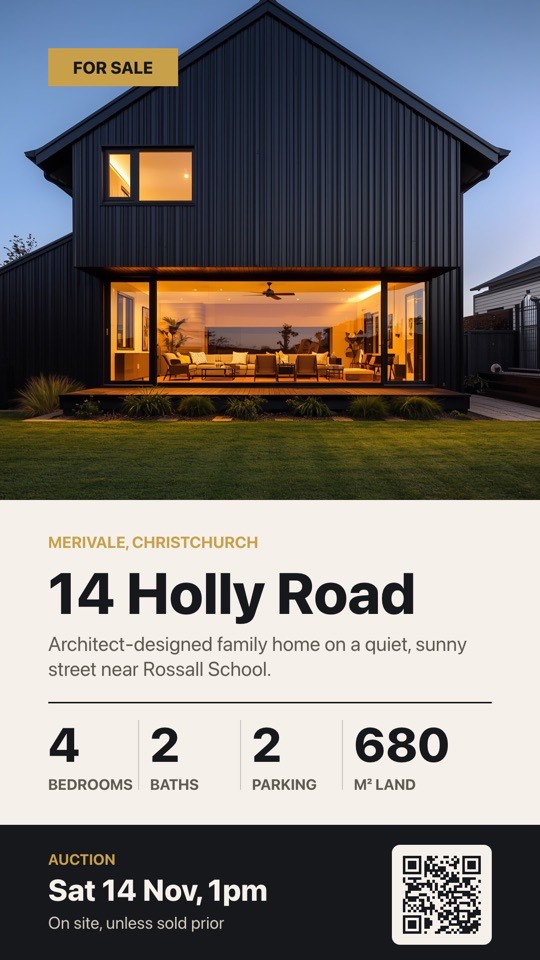 Window property listingHero photo, address, bed/bath/parking stats and auction dateFreeReal estateportrait
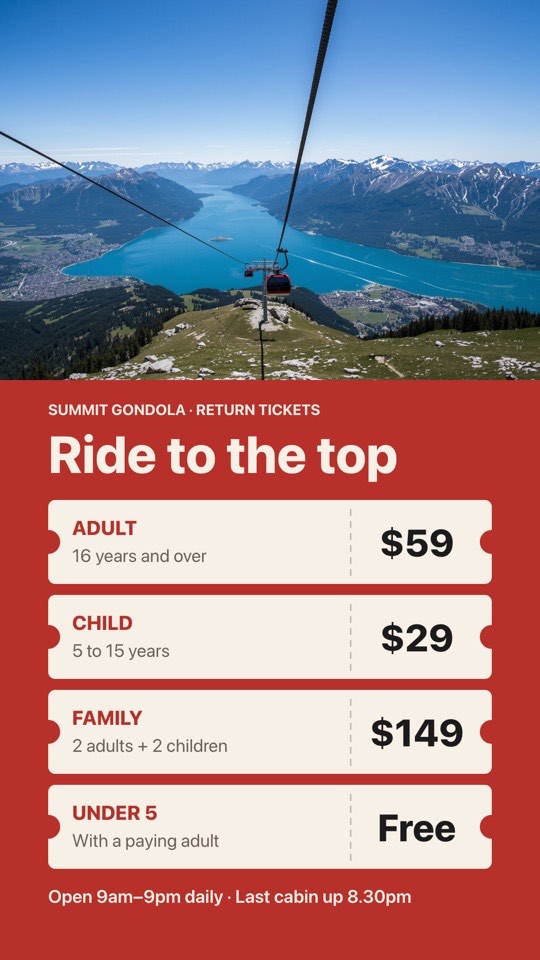 Attraction ticket pricesTicket-stub price list under a scenic photo, with hoursFreeTourismportrait
 Summer sale posterGiant 50% off window poster with a summer product photoFreeRetailportrait
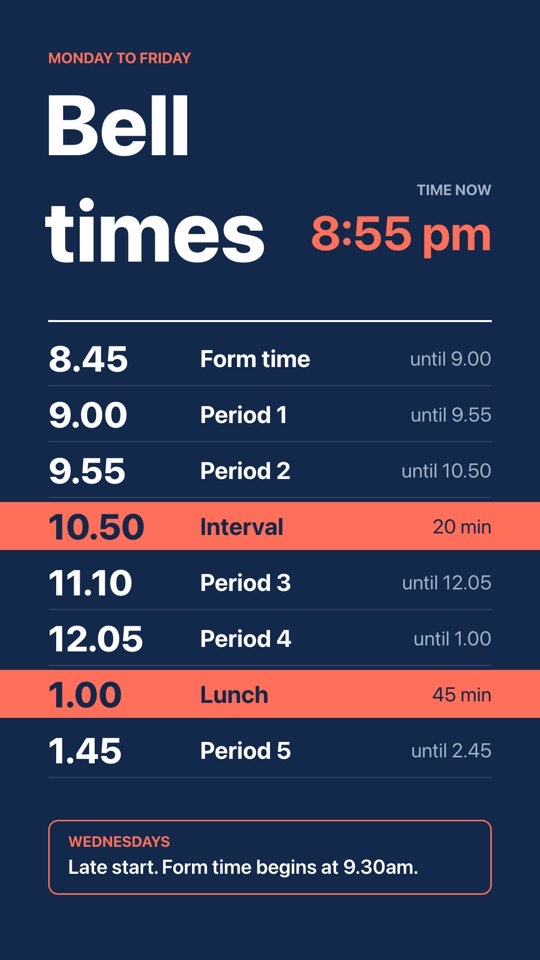 Bell timesThe school day period by period, with breaks and a live clockFreeSchoolsportrait
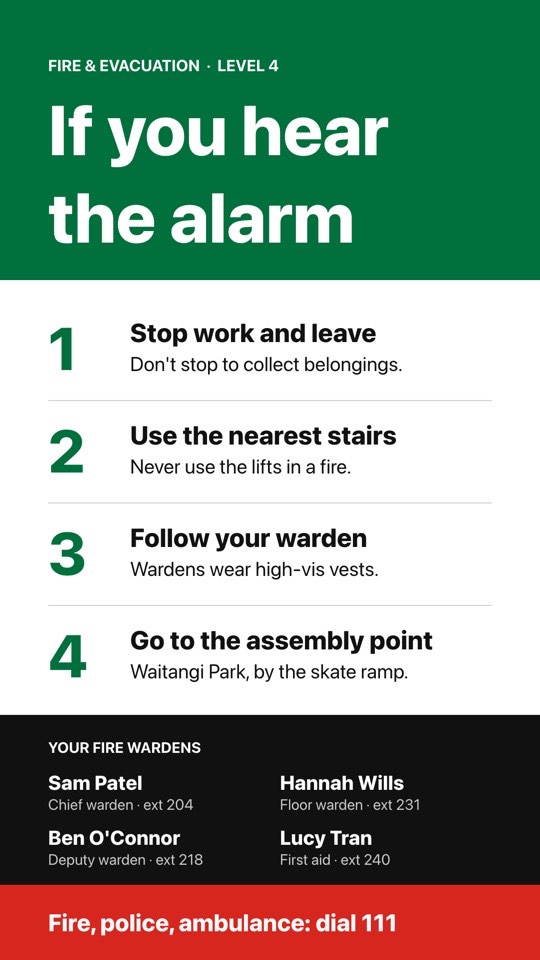 Fire evacuation and wardensFour evacuation steps, your fire wardens and the 111 reminderFreeOfficesportrait
 Wedding welcomeElegant portrait welcome sign with an arched photo and the day's detailsFreeEventsportrait
Browser signage by sector
- Real estateWindow listings on a PC behind the glass.Real estate templates
- TourismTicket prices and things to do on visitor centre kiosks.Tourism templates
- SchoolsBell times and notices on computers already in the library.Schools templates
- OfficesSafety notices and team news on spare monitors.Offices templates
- EventsAgendas and welcomes on venue PCs.Events templates
- RetailPromotions on point-of-sale and kiosk screens.Retail templates
Web browser signage questions
Which browsers does the POMP web player support?
Current versions of Chrome, Edge, Safari and Firefox, plus Chromium on Raspberry Pi and most other modern browsers. Keep the browser up to date for the best video playback.
Can I run digital signage on a Raspberry Pi?
Yes. Run the POMP web player in Chromium's kiosk mode on Raspberry Pi OS with the desktop, and add it to autostart so it opens on boot. A Raspberry Pi 4 or 5 is recommended.
Can I use POMP on a Samsung or LG smart TV?
You can open the web player in the TV's browser today, and commercial Samsung and LG signage displays can point their URL launcher at it. Native apps for Samsung smart TVs (Tizen), LG smart TVs (webOS) and Amazon Fire TV are coming soon.
Does the web player work offline?
Only partly. The browser remembers the pairing and caches some media, but the web player doesn't store your whole playlist like the Apple TV and Android apps do. Use one of the apps for screens that must keep playing through outages.
How do I stop the screen going to sleep?
Set the computer's power settings so the display never turns off or sleeps. Browsers can't hold a screen awake on their own.
Can I set up many browser kiosks at once?
Yes. Use the provisioning address from Settings in the dashboard, which includes your provision key and optionally a playlist and device name. Add temporary=true for kiosks that wipe their storage on restart.
Is the web player free?
Yes. The web player is free to use and the POMP Free plan runs one screen free forever, with no credit card.
Other ways to run POMP
- Apple TV digital signagetvOS app from the App Store
- Android TV digital signageGoogle Play, including TV sticks and boxes
- iPad digital signageSame App Store app as Apple TV
Coming soon: native apps for Samsung smart TVs (Tizen), LG smart TVs (webOS) and Amazon Fire TV.
Put your first screen live in minutes.
The Free plan is free forever. No card, no contract, no special hardware.