iPad digital signage.
POMP turns an iPad into a small digital sign. Install the same free app you'd use on an Apple TV, pair it with a code, and the iPad plays your playlist full screen: a price list on the counter, a sign beside a meeting room door or a welcome screen at reception.
Why use an iPad for digital signage
Because the iPad has a touch screen, buttons on your designs can be tapped, so you can build simple menus and information points that people page through themselves.
- Compact, bright screen for desks, counters, shelves and meeting room doors
- Touch: make any element on a design a button that goes to the next, previous or a chosen slide
- Landscape or portrait, set per screen from the dashboard
- Media cached on the iPad for smooth playback through internet dropouts
- Deploy with Jamf, Microsoft Intune, Mosyle or any MDM using Managed App Configuration
- Lock it to POMP with Guided Access or your MDM's single app mode
- POMP keeps the iPad awake while it's playing
What you need
- An iPad running iPadOS 15.1 or later
- Mains power for screens that run all day, such as a wall mount or stand with a cable
- Wi-Fi
- A free POMP account. The Free plan covers one screen.
How to set up digital signage on an iPad
- 1Install POMP from the App StoreOn the iPad, open the App Store, search for POMP Digital Signage and install it. It's the same free app as on Apple TV.
- 2Pair it with the code on screenThe player shows a short pairing code and a QR code. In the POMP dashboard, open Devices, choose Pair device and type the code, or scan the QR code with your phone.
- 3Name the screen and pick a playlistGive the screen a name, choose a playlist and set landscape or portrait. The screen starts playing within seconds and updates whenever you change the playlist.
- 4Lock it to POMP (optional)Turn on Guided Access in the iPad's Accessibility settings, or use single app mode from your MDM, so the iPad stays on POMP.
iPad kiosks and meeting room signs
An iPad on a wall mount beside a door makes a tidy meeting room sign, with today's bookings from Google or Outlook calendars. On a counter stand it can show a menu, a price list or a QR code for sign-ups, and visitors can tap through slides themselves.
Keep the iPad on POMP with Guided Access for one-off installs, or with your MDM's single app mode across a fleet.
Portrait and landscape on iPad
POMP plays in a fixed orientation, so set each screen to landscape or portrait in the dashboard to match how the iPad is mounted. Portrait suits menus, posters and room signs on a narrow wall.
Popular templates for iPad
Free on every plan. Change the words, photos and colours, then play them on your screens.
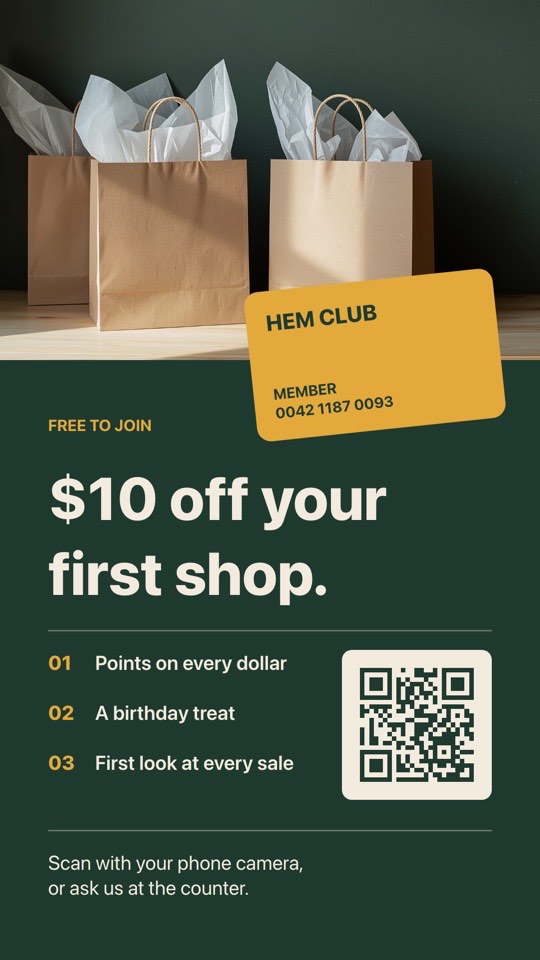 Loyalty club sign-upMember card, perks list and a big scan-to-join QR codeFreeRetailportrait
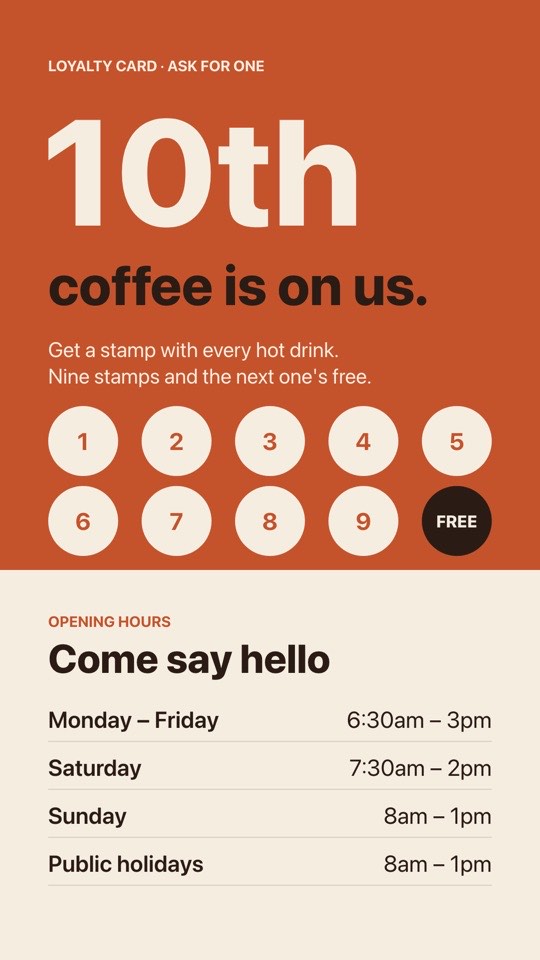 Loyalty card and hours10th coffee free stamp card with opening hoursFreeCafésportrait
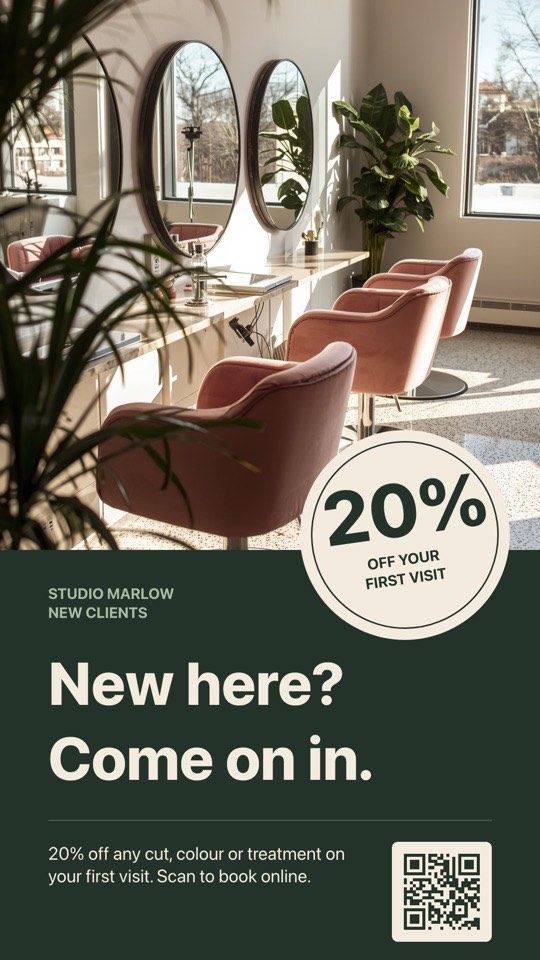 New client offerFirst visit discount poster with a stamp badge and booking QRFreeSalonsportrait
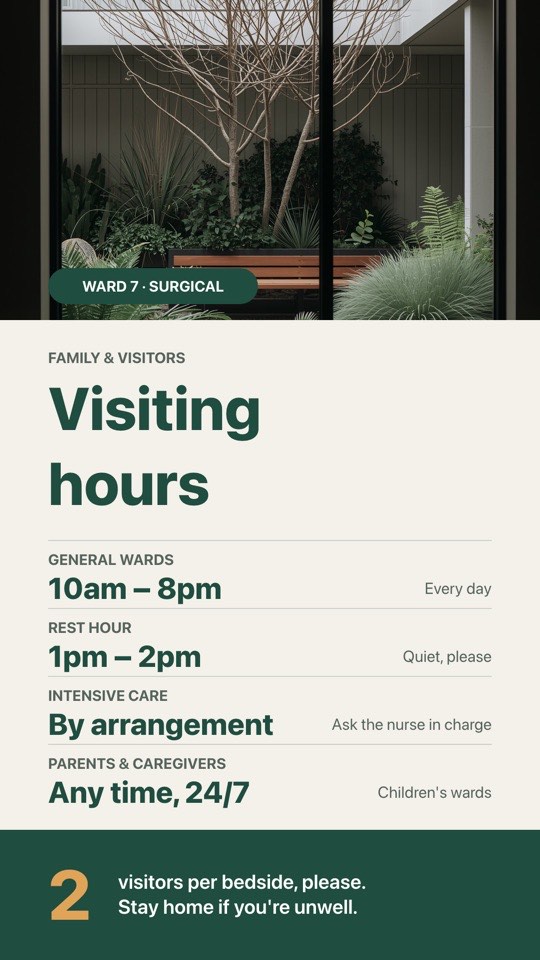 Visiting hoursWard visiting hours, rest hour and visitor guidelines with a photoFreeHospitalsportrait
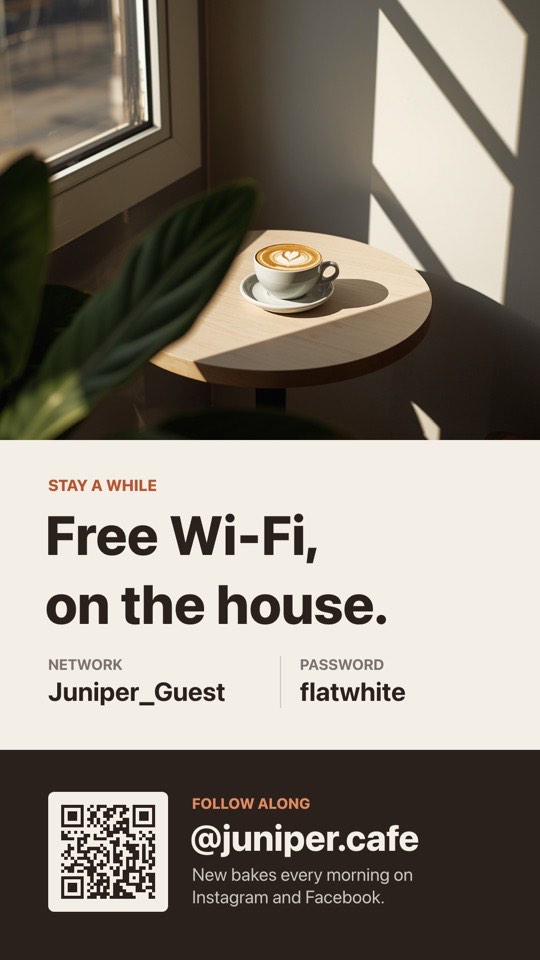 Wi-Fi and follow usFree Wi-Fi details plus a QR to follow you on social mediaFreeGeneralportrait
 Meet your agentAgent portrait, track record and a free appraisal QR codeFreeReal estateportrait
iPad signage by sector
- OfficesMeeting room signs and visitor welcomes at reception.Offices templates
- CafésLoyalty offers and specials beside the till.Cafés templates
- SalonsPrice lists and booking QR codes at the front desk.Salons templates
- RetailProduct information and loyalty sign-ups on the shop floor.Retail templates
- HospitalsVisiting hours and directions at ward entrances.Hospitals templates
- EventsSession schedules outside conference rooms.Events templates
iPad signage questions
Which iPads can run POMP?
Any iPad running iPadOS 15.1 or later, including iPad, iPad mini, iPad Air and iPad Pro models. POMP is made for iPad; it isn't available for iPhone.
Is the iPad app the same as the Apple TV app?
Yes. It's the same POMP Digital Signage app on the App Store, with the same pairing flow and the same dashboard. One account can run iPads and Apple TVs side by side.
Can people tap the screen?
Yes. Any element on a POMP design can be a button that goes to the next slide, the previous slide or a chosen slide, so an iPad can work as a simple self-service kiosk.
How do I stop people leaving the app?
Turn on Guided Access in the iPad's Accessibility settings and start it in POMP, or use your MDM's single app mode for managed iPads.
How do I deploy POMP to many iPads?
Push the app with Jamf, Microsoft Intune, Mosyle or any MDM, and add your provision key in Managed App Configuration. Each iPad enrols itself with the right name and playlist. See pompsignage.com/mass-deployment.
Does it work offline?
Yes. Images and videos are cached on the iPad and the last playlist keeps playing until the connection returns.
Other ways to run POMP
- Apple TV digital signagetvOS app from the App Store
- Android TV digital signageGoogle Play, including TV sticks and boxes
- Web browser digital signageplayer.pompsignage.com, nothing to install
Coming soon: native apps for Samsung smart TVs (Tizen), LG smart TVs (webOS) and Amazon Fire TV.
Put your first screen live in minutes.
The Free plan is free forever. No card, no contract, no special hardware.